Recently I’ve been working on a relatively low budget feature film documentary and I was tasked with helping to create a spreadsheet representative of every shot in the film to help track usage rights and replacement of shots and such. Since it’s just under 900 shots, I was initially a little… hesitant because I didn’t know of a way to automate this–to date I’ve only ever relatively manually uploaded stills and dropped them in one by one. This has been fine on the scale of ~10-30 shots but I felt 900 was just a bit much to manually drop in without losing my sanity.
So with some very heavy lifting from ChatGPT, I’ve stumbled upon a working solution via Google Sheets’ Apps Script Extensions to automate this process, and it worked! The only catch is that I needed to jump through a few hoops because for my particular use-case, I found the Apps Script would time out when I let it run through all 900 shots, but when I did it in batches of ~75, it got the job done.
Here’s what I did:
- Prep your timeline and export your .csv from Flame. The simpler your timeline (track-wise) the better, since you’ll want to ensure it’s just a big list of shots sorted by shot name. I duplicated it and removed any graphics / audio / references just so it was as clean as possible requiring little cleanup afterwards. I found BFX with clips inside them can add some confusion since they might not have shotnames, but will still show up in the Conform list, so be warned you might need some more cleanup.

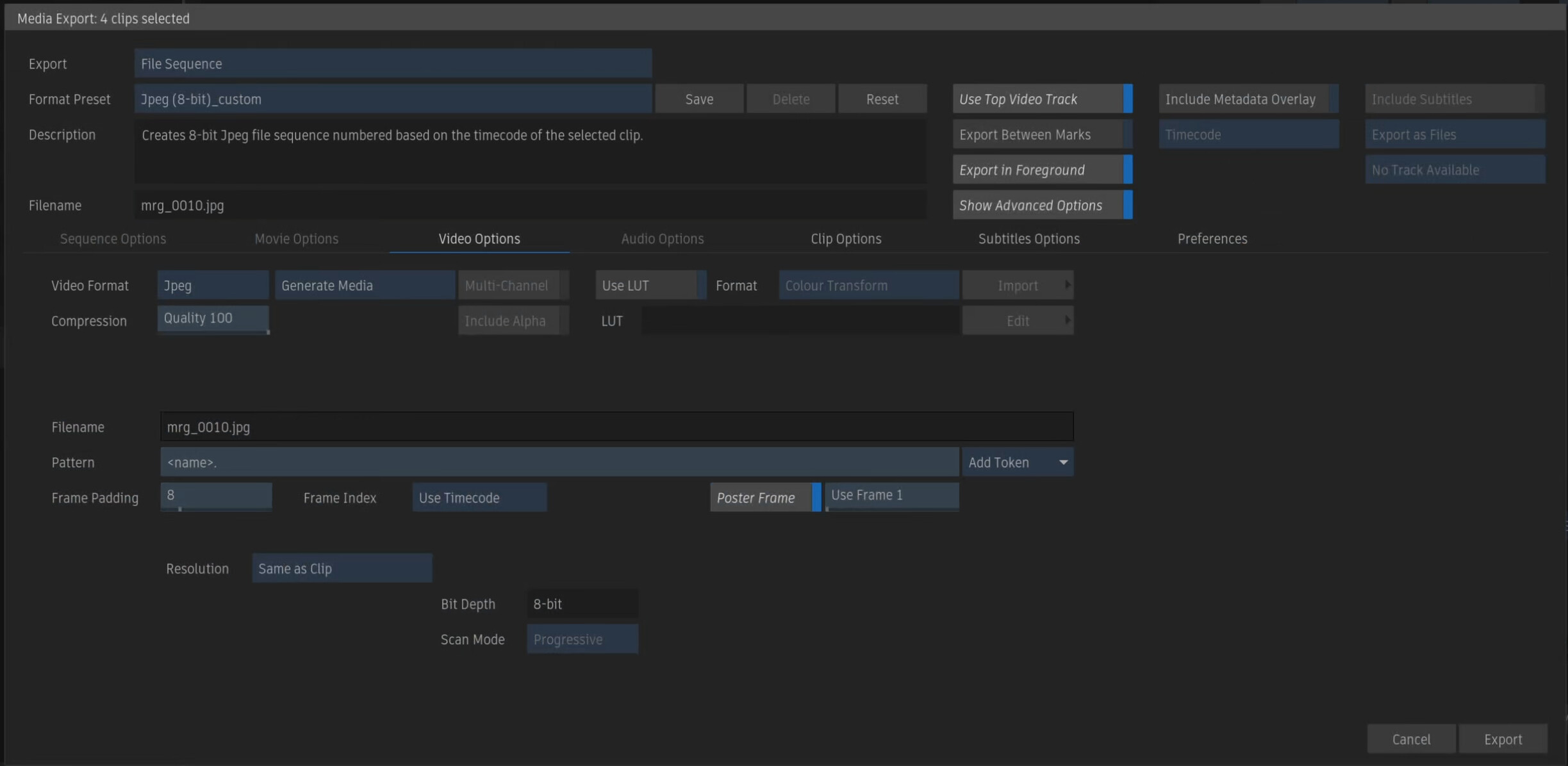
- Export a .jpg still of every shot named by shot name. I know in some workflows you might want to get more granular if a shot has multiple clips, and so a single shot name wouldn’t cut it, but I wanted to keep it simple for a proof of concept but I think the important thing is that you have a column of names that match the name you export, so keep that in mind. I chose to go down the route of matching out every segment into a reel, exporting a File Sequence of Jpegs set to Poster Frame mode using Frame 1, and ensuring they are all named based on the shot name. I found I needed to change all of my segment names to shot names just to simplify the export.
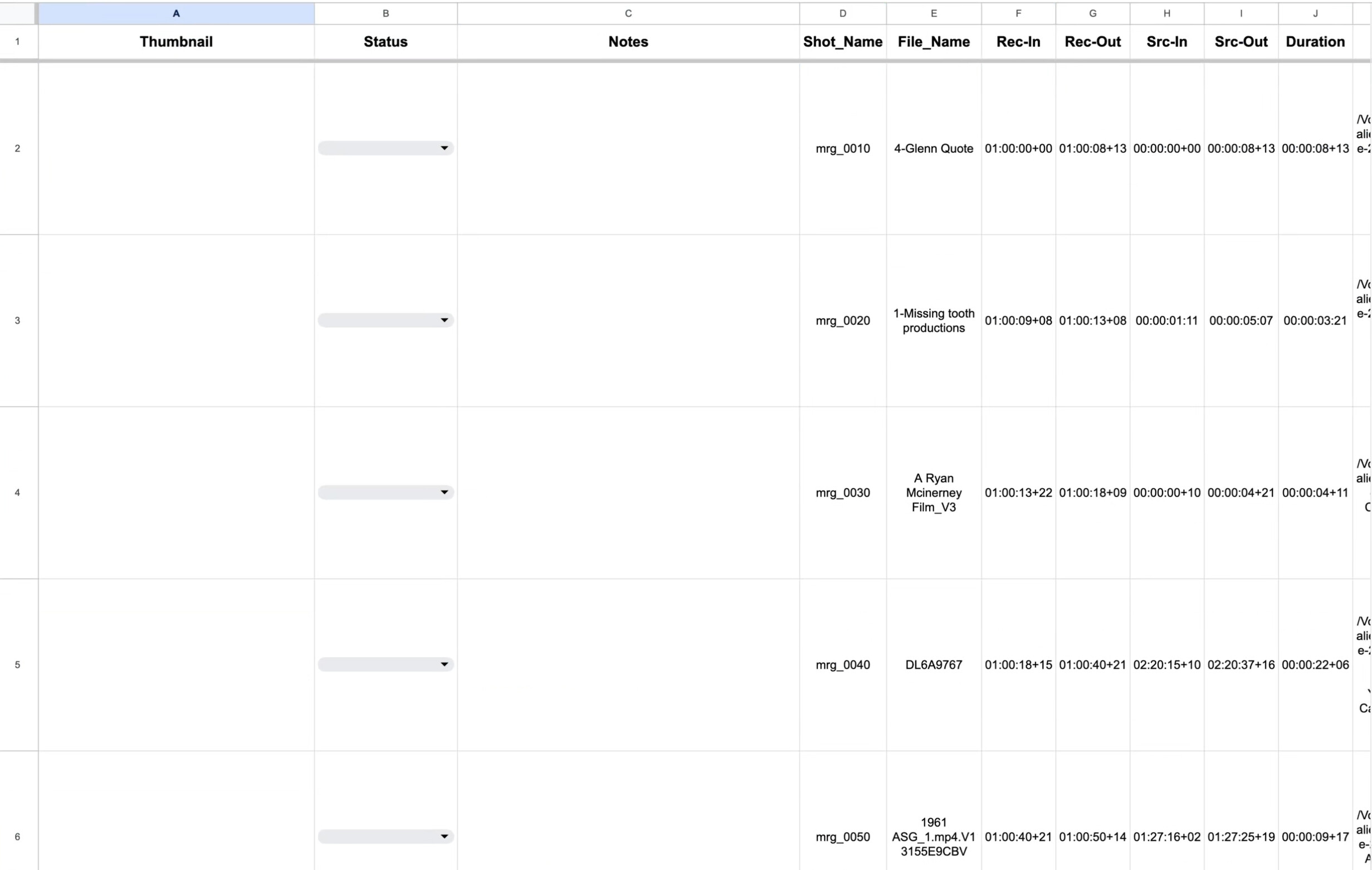
- Upload your exported .jpg’s to Google Drive, Import the .csv into Google Sheets, and clean up the spreadsheet based on your needs and personal preference of layout. But regardless of what you change, definitely add a Thumbnail column, since that’s the point. Ensure you set the Google Drive folder to have wide open permissions “Anyone with the link” set to “Viewer”.

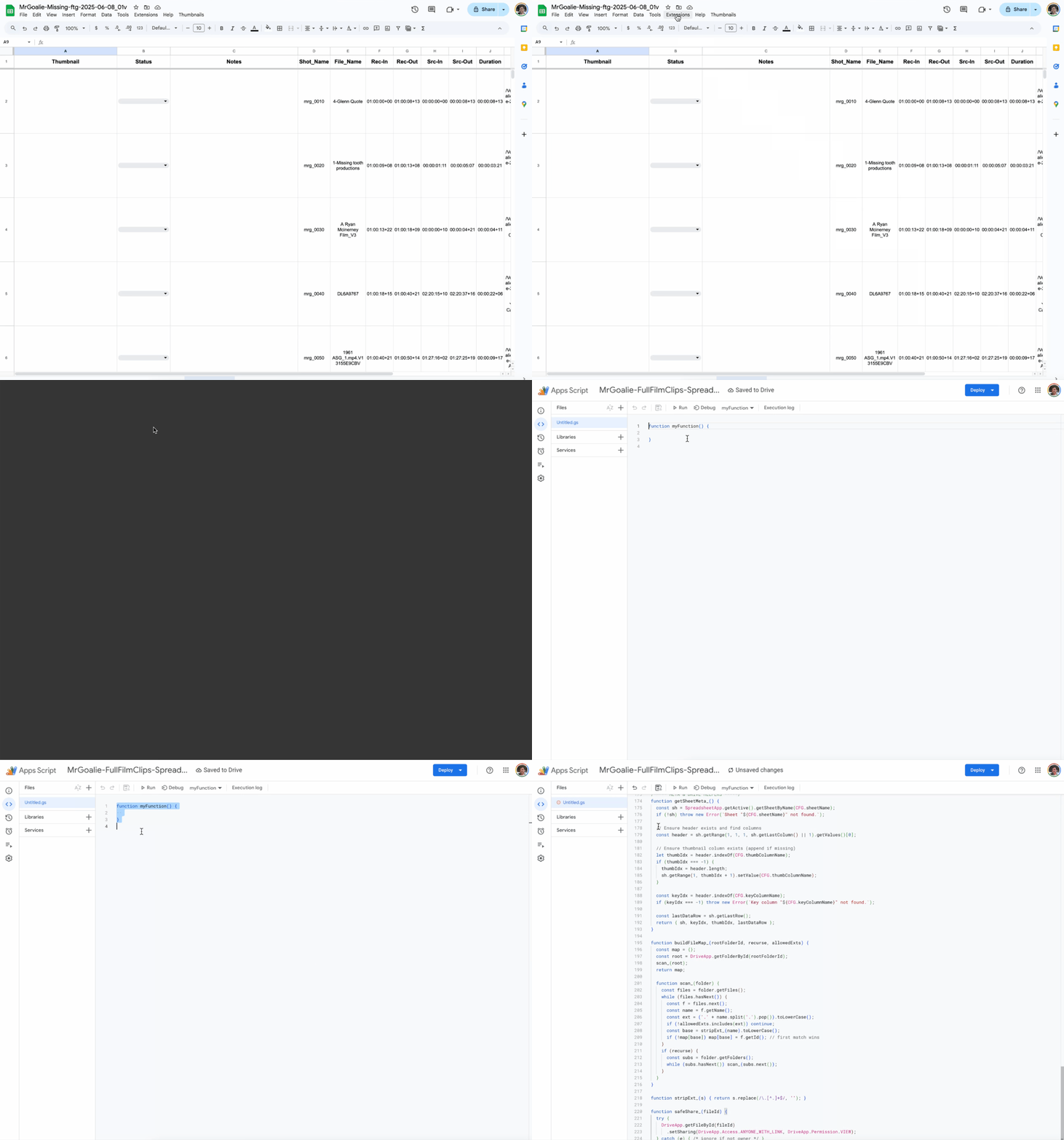
- In the Google Sheet, go to Extensions → Apps Script and paste this script in the Editor area:
/***** CONFIG *****/
const CFG = {
  folderId: 'ENTER-ID-HERE',   // Drive folder with thumbnails
  sheetName: 'ENTER-GOOGLE-SHEET-TAB-NAME-HERE',                     // tab name
  keyColumnName: 'Shot_Name',                       // column that matches file basenames (no extension)
  thumbColumnName: 'Thumbnail',                     // where thumbnails/formulas go

  // Image display
  imgWidthPx: 280,
  imgHeightPx: 160,
  rowHeightPx: 190,

  // Behavior
  includeSubfolders: true,
  setSharing: true,                                 // set files to "Anyone with link → Viewer"
  allowedExts: ['.jpg','.jpeg','.png','.webp'],

  // Automation
  batchSize: 75,            // rows per run (50–125 is safe)
  triggerEveryMinutes: 5,   // how often auto runs
};

/***** MENU *****/
function onOpen() {
  SpreadsheetApp.getUi()
    .createMenu('Thumbnails')
    .addItem('Run One Batch Now', 'processNextBatch')
    .addItem('Start Auto (every 5 min)', 'startAuto')
    .addItem('Stop Auto', 'stopAuto')
    .addSeparator()
    .addItem('Reset Progress to Row 2', 'resetProgressToTop')
    .addItem('Set Start Row…', 'setStartRowPrompt')
    .addItem('Show Status', 'showStatus')
    .addSeparator()
    .addItem('List Missing (preview)', 'listMissingThumbs')
    .addToUi();
}

/***** STATE KEYS *****/
const PK = {
  nextRow: 'thumbs_next_row',  // 1-based sheet row to start next time
};

/***** START / STOP AUTOMATION *****/
function startAuto() {
  const props = PropertiesService.getDocumentProperties();
  if (!props.getProperty(PK.nextRow)) props.setProperty(PK.nextRow, '2'); // first data row
  // Remove any existing project triggers to prevent duplicates
  ScriptApp.getProjectTriggers().forEach(t => ScriptApp.deleteTrigger(t));
  ScriptApp.newTrigger('processNextBatch')
    .timeBased()
    .everyMinutes(CFG.triggerEveryMinutes)
    .create();
  SpreadsheetApp.getActive().toast(
    `Auto-run started (every ${CFG.triggerEveryMinutes} min).`,
    'Thumbnails', 5
  );
}

function stopAuto() {
  ScriptApp.getProjectTriggers().forEach(t => ScriptApp.deleteTrigger(t));
  SpreadsheetApp.getActive().toast('Auto-run stopped.', 'Thumbnails', 5);
}

/***** RUN A BATCH *****/
function processNextBatch() {
  const { sh, keyIdx, thumbIdx, lastDataRow } = getSheetMeta_();
  const props = PropertiesService.getDocumentProperties();
  let startRow = parseInt(props.getProperty(PK.nextRow) || '2', 10);

  // Nothing to do?
  if (startRow < 2) startRow = 2;
  if (startRow > lastDataRow) {
    SpreadsheetApp.getActive().toast('All rows processed. Stopping auto.', 'Thumbnails', 5);
    stopAuto(); // finished
    return;
  }

  const endRow = Math.min(startRow + CFG.batchSize - 1, lastDataRow);

  // Read needed data range in one go
  const values = sh.getRange(1, 1, lastDataRow, sh.getLastColumn()).getValues();

  // Build map: basename → fileId
  const fileMap = buildFileMap_(CFG.folderId, CFG.includeSubfolders, CFG.allowedExts);

  // Prepare formulas for target rows
  const formulas = [];
  for (let r = startRow; r <= endRow; r++) {
    const keyRaw = (values[r - 1][keyIdx] || '').toString().trim();
    let cell = '';
    if (keyRaw) {
      const base = stripExt_(keyRaw).toLowerCase();
      const fid = fileMap[base];
      if (fid) {
        if (CFG.setSharing) safeShare_(fid);
        const url = `https://drive.google.com/uc?export=view&id=${fid}`;
        cell = `=IMAGE("${url}",4,${CFG.imgHeightPx},${CFG.imgWidthPx})`;
      } else {
        cell = `(missing: ${keyRaw})`;
      }
    }
    formulas.push([cell]);
  }

  // Write results and set sizes
  if (formulas.length) {
    sh.getRange(startRow, thumbIdx + 1, formulas.length, 1).setValues(formulas);
    for (let i = 0; i < formulas.length; i++) {
      sh.setRowHeight(startRow + i, CFG.rowHeightPx);
    }
    sh.setColumnWidth(thumbIdx + 1, CFG.imgWidthPx + 24);
  }

  const next = endRow + 1;
  PropertiesService.getDocumentProperties().setProperty(PK.nextRow, String(next));

  SpreadsheetApp.getActive().toast(
    `Processed rows ${startRow}–${endRow}. Next: ${next > lastDataRow ? 'DONE' : next}`,
    'Thumbnails', 6
  );

  // If this was a manual run (Run button), nothing else to do.
  // If it was time-driven, the trigger will run again automatically.
  if (next > lastDataRow) stopAuto();
}

/***** HELPERS IN MENU *****/
function resetProgressToTop() {
  PropertiesService.getDocumentProperties().setProperty(PK.nextRow, '2');
  SpreadsheetApp.getActive().toast('Progress reset to row 2.', 'Thumbnails', 5);
}

function setStartRowPrompt() {
  const ui = SpreadsheetApp.getUi();
  const res = ui.prompt('Start row', 'Enter first data row (>= 2):', ui.ButtonSet.OK_CANCEL);
  if (res.getSelectedButton() !== ui.Button.OK) return;
  const n = Math.max(2, parseInt(res.getResponseText(), 10) || 2);
  PropertiesService.getDocumentProperties().setProperty(PK.nextRow, String(n));
  ui.alert(`Next run will start at row ${n}.`);
}

function showStatus() {
  const props = PropertiesService.getDocumentProperties();
  const next = props.getProperty(PK.nextRow) || '2';
  const { lastDataRow } = getSheetMeta_();
  const triggers = ScriptApp.getProjectTriggers().length;
  SpreadsheetApp.getUi().alert(
    'Thumbnail automation status',
    `Next row: ${next}\nLast data row: ${lastDataRow}\nActive triggers: ${triggers}`,
    SpreadsheetApp.getUi().ButtonSet.OK
  );
}

/***** LIST MISSING (optional) *****/
function listMissingThumbs() {
  const { sh, keyIdx, lastDataRow } = getSheetMeta_();
  const vals = sh.getRange(1, 1, lastDataRow, sh.getLastColumn()).getValues();
  const fileMap = buildFileMap_(CFG.folderId, CFG.includeSubfolders, CFG.allowedExts);
  const missing = [];
  for (let r = 2; r <= lastDataRow; r++) {
    const keyRaw = (vals[r - 1][keyIdx] || '').toString().trim();
    if (!keyRaw) continue;
    if (!fileMap[stripExt_(keyRaw).toLowerCase()]) missing.push(`${r}: ${keyRaw}`);
  }
  SpreadsheetApp.getUi().alert(
    `Missing thumbnails: ${missing.length}`,
    missing.slice(0, 50).join('\n') + (missing.length > 50 ? '\n…' : ''),
    SpreadsheetApp.getUi().ButtonSet.OK
  );
}

/***** META & DRIVE HELPERS *****/
function getSheetMeta_() {
  const sh = SpreadsheetApp.getActive().getSheetByName(CFG.sheetName);
  if (!sh) throw new Error(`Sheet "${CFG.sheetName}" not found.`);

  // Ensure header exists and find columns
  const header = sh.getRange(1, 1, 1, sh.getLastColumn() || 1).getValues()[0];

  // Ensure thumbnail column exists (append if missing)
  let thumbIdx = header.indexOf(CFG.thumbColumnName);
  if (thumbIdx === -1) {
    thumbIdx = header.length;
    sh.getRange(1, thumbIdx + 1).setValue(CFG.thumbColumnName);
  }

  const keyIdx = header.indexOf(CFG.keyColumnName);
  if (keyIdx === -1) throw new Error(`Key column "${CFG.keyColumnName}" not found.`);

  const lastDataRow = sh.getLastRow();
  return { sh, keyIdx, thumbIdx, lastDataRow };
}

function buildFileMap_(rootFolderId, recurse, allowedExts) {
  const map = {};
  const root = DriveApp.getFolderById(rootFolderId);
  scan_(root);
  return map;

  function scan_(folder) {
    const files = folder.getFiles();
    while (files.hasNext()) {
      const f = files.next();
      const name = f.getName();
      const ext = ('.' + name.split('.').pop()).toLowerCase();
      if (!allowedExts.includes(ext)) continue;
      const base = stripExt_(name).toLowerCase();
      if (!map[base]) map[base] = f.getId(); // first match wins
    }
    if (recurse) {
      const subs = folder.getFolders();
      while (subs.hasNext()) scan_(subs.next());
    }
  }
}

function stripExt_(s) { return s.replace(/\.[^.]+$/, ''); }

function safeShare_(fileId) {
  try {
    DriveApp.getFileById(fileId)
      .setSharing(DriveApp.Access.ANYONE_WITH_LINK, DriveApp.Permission.VIEW);
  } catch (e) { /* ignore if not owner */ }
}
Note the top section of the script has some areas you need to adjust:
folderId: the ID section of the Google Drive folder share URL:
https://drive.google.com/drive/folders/<THIS IS THE FOLDER ID>?usp=sharing
sheet name: the name of your current Google Sheets sheet / tab located in the lower left corner (note: this is not the name of your Google Sheet at the top left)
keyColumnName: the name of the column in the Google Sheet that the script is looking at to compare to the file name of the thumbnails
thumbColumnName: the name of the column in the Google Sheet that the thumbnails will populate into
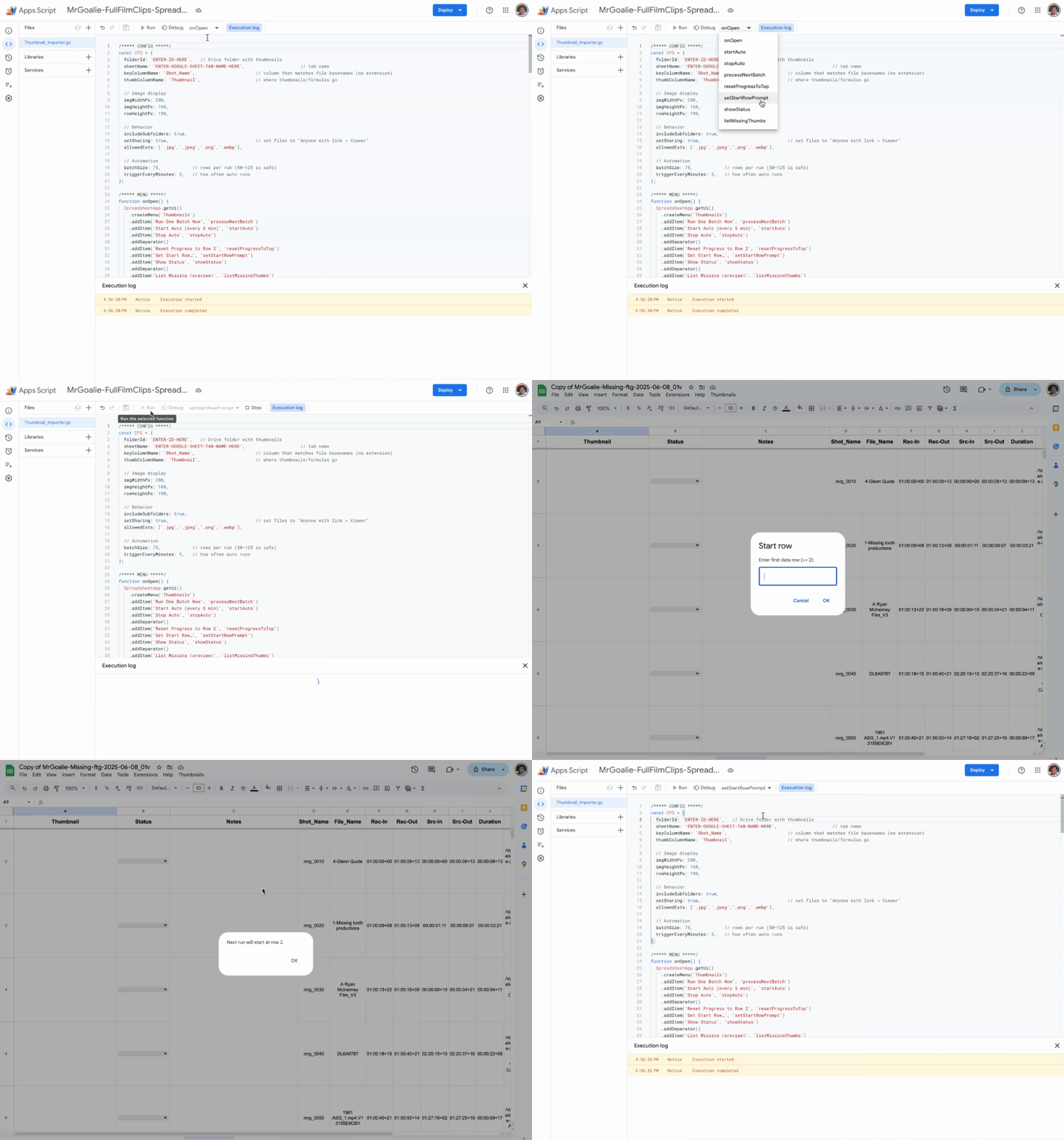
- Once the script is pasted in, and you’ve adjusted the config for your folder ID & column names, hit the “Save” icon to Save project to Drive. Then, note this dropdown at the top of the Apps Script. You twirl open this dropdown to choose which part of the script to execute.

Run the “onOpen” part to initiate the permissions integration. You only need to do this once.

Once you run that and give it permission to your Google Drive, run the “startAuto” script and it should start.
Some potentially important details:
-
The =IMAGE() formulas pull from public URLs. If your Drive folder or files aren’t set to Anyone with the link → Viewer, they’ll look broken for others.
The script’s safeShare_() tries to set that automatically, but it can fail if you’re not the owner or your sharing is restricted. -
The script matches based on the basename of the file (case-insensitive, extension removed). Your sheet’s Shot_Name column contents need to match the thumbnail file names or they will appear “(missing: …)”.
-
If you interrupt the script or if something goes wrong, the script theoretically should remember your place, but if something goes wrong, you can use the menu’s “setStartRowPrompt” and you can manually set the Row you’d like it to start on.
-
If you get a “Bad Request 400” when opening Apps Script, try logging out & in of google or clearing your browser cookies.
- In your Google Sheet, your thumbnails should start populating. Unfortunately, there’s very little feedback or progress bars, but in my experience I let it run and it got through my 900 thumbnails in something like an hour.
Happy to answer questions, but hope this helps someone in a similar predicament!

