Apple released macOS 26.1 on November 3rd and we discovered two regressions
-Installation issues wit Full Disk Access
-Automatte (Machine Learning) is not working as expected.
For now, please wait before upgrading to macOS 26.1.
Detals:
-Full Disk Access
If you install the OS update and then install Flame Family products, the Full Disk Access for the newly installed applications and components will not be listed in the Full Disk Access panel. if you plan to upgrade your macOS and install Flame Family 2026.2 Update, you should first install the application then later upgrade the OS in this order.
If you plan to install the application after the OS upgrade, you will need to manually add Flame and its components and enable Full Disk Access for each of these.
We have reported the issue to Apple and will let you know the outcome.
Detailed Workaround:
macOS Settings,
Privacy & Settings,
Full Disk Access
Click the " + " sign
Press Shift - Command - G to be able to enter a full path
Enter path, example: /opt/Autodesk/wiretap//ifffsWireTapServer
Click Open
Repeat for other permissions
Note that despite the permission was given, you still won’t see it in the macOS panel.
Use Service Monitor, Full Disk Access diagnostic to confirm enabled services.
We have replicated the issue in our lab and we are working closely with Apple to better understand what is the root cause of these issues. Stay tune for more details BUT stay away from macOS 26.1 for now.
Did the update, thanks for sharing your workaround!
I can’t see the media storage in the setup menu.
I have a few projects I can’t reopen right now (all backed up of course) but I’m curious to know why it’s not showing up like Shiver.
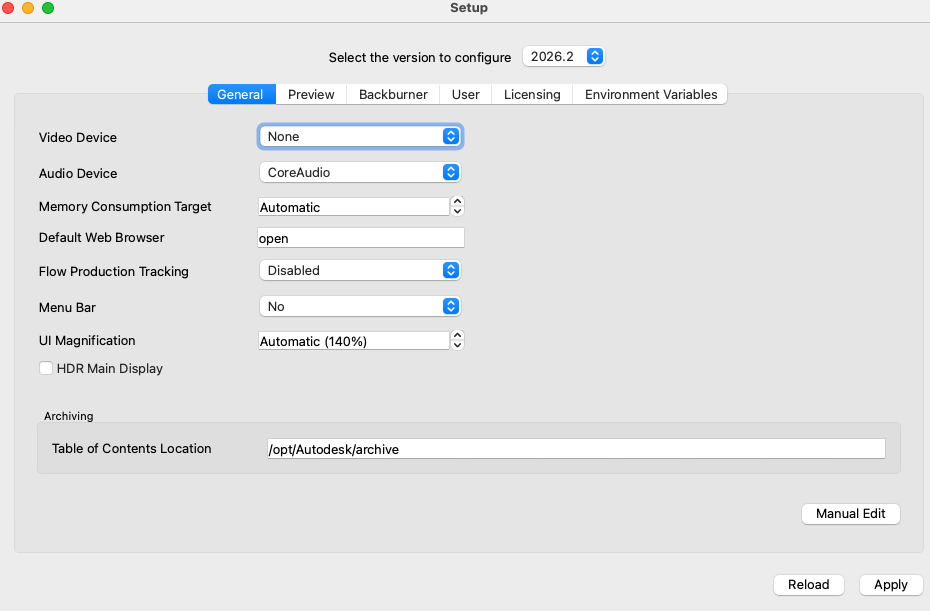
Since Flame 2026, there is no more global Media Storage (Volumes) and the Setup application has been updated. Shiver screenshot shows the Setup application for a mac with 2025 and 2026 installed. If you only have Flame 2026 and up on your mac then you will not see the Media Storage tab since it is not needed anymore.
I’m trying to install 2026.2.1 on a mac that is running Tahoe 26.1. On launch, Flame is prompting me to enable Full Disk Access for ifffsWiretapServer and wiretapgateway. However, those two items are not showing up in the Full Disk Access tab of Privacy & Security on MacOS. All I see in Full Disk Access is Flame.
Thanks. It’s weird here. I can see the files I need, and I can either drag them into the Full Disk Access window or add them with the + menu, but they do not get added to Full Disk Access.
In the Service Monitor app, on the Diagnostics tab, if you run a Full Disk Access diagnostic, it will list the services that don’t have Full Disk Access and provide the full path if they don’t.